
Set Your Custom Domain (CNAME)
- Log in to your Marky account and go to your Agency Dashboard, then set your CNAME
- Ex. (anysubdomain).(yourdomain.com) in this sample it’s social.sjsugarrush.shop
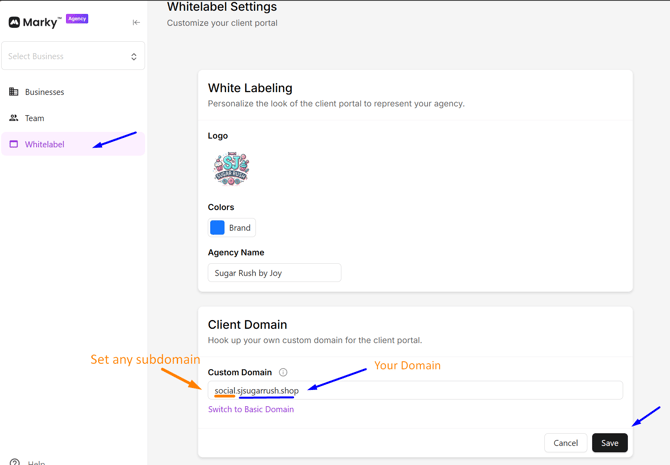
- Click save and Mary will generate two DNS records. Copy the these two records(both Name/Host and Value/Target)
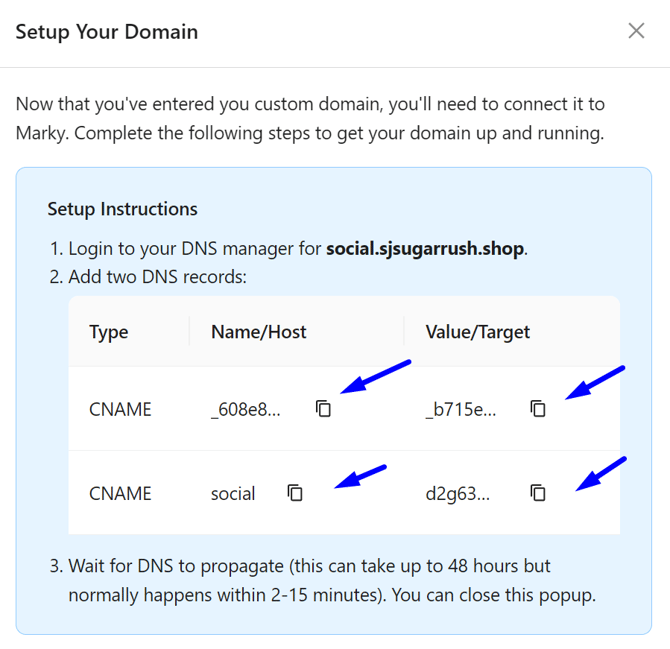
Log in to Your DNS Provider
- This is usually your domain registrar (GoDaddy, Namecheap, Google Domains, etc.) or a DNS host (Cloudflare, Route53, etc.).
- Navigate to the DNS Management or Zone Editor section.
Add a New Record
- Click Add Record (or similar).
- Choose CNAME from the record type dropdown.
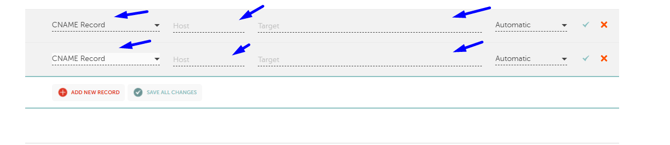
Add the Two DNS Records from Marky
- Make sure you are adding both two DNS records from Marky to your DNS provider. Usually you add new records under Domain >> Advance DNS.
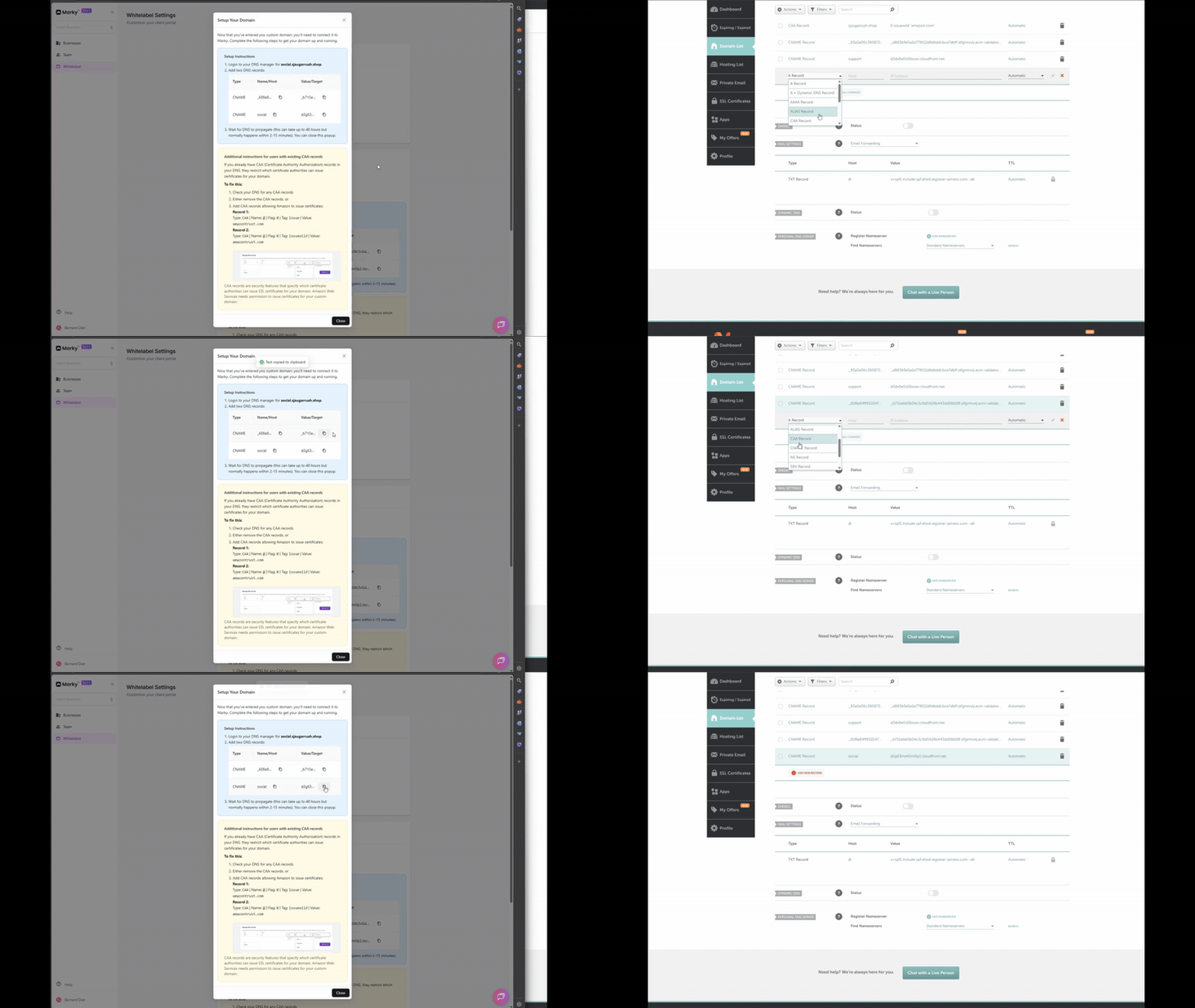
- Once everything is set, wait for the DNS propagation to be completed. Normally it will take 1-2 hours. Sometimes up to 48, depending on your DNS provider.
Additional instructions for users with existing CAA records
If you already have CAA (Certificate Authority Authorization) records in your DNS, they restrict which certificate authorities can issue certificates for your domain.
To fix this:
- Check your DNS for any CAA records
- Either remove the CAA records, or
- Add CAA records allowing Amazon to issue certificates:
Record 1:
Type: CAA | Name: @ | Flag: 0 | Tag: issue | Value: amazontrust.com
Record 2:
Type: CAA | Name: @ | Flag: 0 | Tag: issuewild | Value: amazontrust.com

CAA records are security features that specify which certificate authorities can issue SSL certificates for your domain. Amazon Web Services needs permission to issue certificates for your custom domain.